IdaJS
JavaScript-powered engine for LBA2 game modding
Getting Started Tutorial
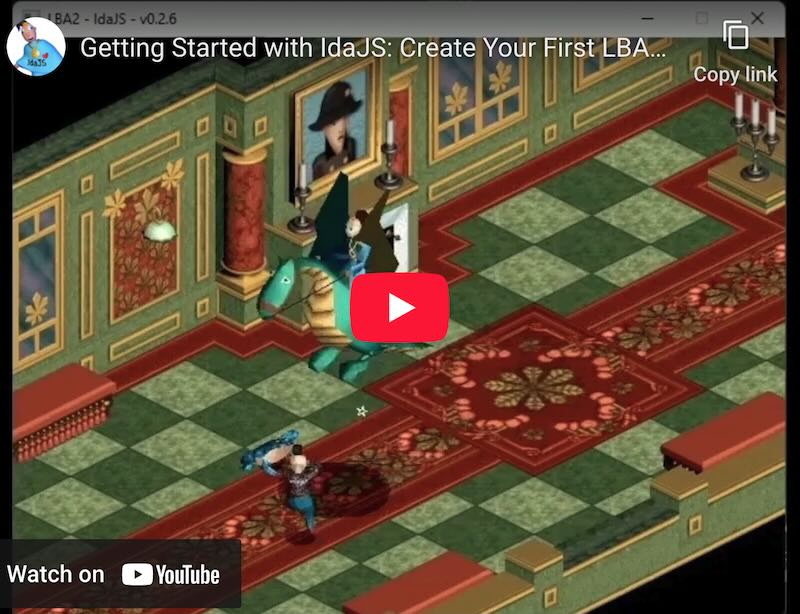
❤️ IdaJS supporters ❤️
Huge thanks to Alban Crequy for supporting IdaJS project on Patreon!
Why IdaJS
-
Mod any scenes of LBA2 game: change both
OutdoorandIndoorlocations of Little Big Adventure 2. Modify characters, their behaviors, dialogs, sprites, and everything else LBA2 engine code supports as much as you like. -
Easy to start: JavaScript is beginner-friendly — even if you’ve never coded before, you can read it and understand what’s happening.
-
Mod big or mod small: IdaJS mods work perfectly together with the existing LBA2 story and behaviours on the same scene. If you want, you can rewrite the whole scenes, or just implement small additions to the existing game.
-
Vibe coding friendly: AI models are particularly good with JavaScript/TypeScript, so you can use it to help you write your mods very fast!
-
Modern tools: with all the tools support (VS Code, TypeScript, linters, inline documentation, formatters, intellisense, type checking, etc)
-
Huge amount of libraries and community support: with JavaScript, you get access to thousands of open-source npm packages — from utilities and tools to full game-logic helpers. A lot of problems are already solved, so you can focus on creating.
Get IdaJS here
- Version: 0.2.10
- Download IdaJS: https://github.com/innerbytes/idajs/archive/refs/tags/v0.2.10.zip
- Release notes: https://github.com/innerbytes/idajs/releases/tag/v0.2.10
- GitHub repository: https://github.com/innerbytes/idajs
- Developer: Innerbytes Software
1. Community and support
1.1 Found a bug in IdaJS or mistake in this documentation?
Or maybe have a feature request or idea for improvement?
- Start discussion here: https://github.com/innerbytes/idajs/discussions
- Or create an issue here: https://github.com/innerbytes/idajs/issues
1.2 Support the project
If you find this project useful and would like to support its development, here is how you can help:
- Support the project on #Patreon or #BuyMeACoffee
- Read more here: https://innerbytes.com/#about
1.3 Other versions of this documentation.
Click to expand versions
If you are using older version of IdaJS engine, and are not ready to upgrade yet, you can find the documentation for older versions here.
1.4 License and Distribution (please read)
-
IdaJS is shipped as source code only. We do not provide prebuilt binaries, because the original LBA2 community source code is GPLv2 while Google’s V8 JavaScript engine has 3rd party dependencies, that use Apache 2.0 license; these licenses are not compatible for redistribution in a single binary.
-
To run IdaJS locally, you add V8 via NuGet references and build on your own PC. Don't worry, the setup is streamlined and automated in this repository, so you don’t need to assemble anything manually beyond placing
packages.configand runningsetup.batscript. -
What you may do:
- Build and run IdaJS on your own machine for personal use.
- Create and share your own mods publicly (scripts, media assets, configurations) made with and for IdaJS.
-
What you must not do:
- Do not distribute compiled
LBA2.exeor other IdaJS binaries that include V8 or are compiled together with V8. - Do not distribute the IdaJS source code with V8 engine package references or sources together.
- Do not distribute compiled
In short: enjoy IdaJS locally and share your mods freely, but please don’t redistribute binaries or sources that include V8.
2. Getting started
2.1 Prerequisites
Operating System
- Windows 10 or 11 64bit
- macOS (Apple Silicon, tested) - if you are using macOS, please install UTM free virtual machine, and install Windows 11 ARM64 in it.
- Linux (not tested) - should work in QEMU/KVM with Windows 10/11 64bit installed, but it wasn't tested yet. Please let us know if you tried it and it worked good.
- Internet connection (needed during the setup process only, to download necessary build tools)
LBA 2 classic installed
- LBA 2 classic game purchased and installed on your PC. You can use GOG or Steam version of the game.
- IdaJS will not modify any of your original game files, so you can always run the original game as well.
- itch.io version of LBA2 should also work, but it wasn't tested yet. If you tried it and it worked, please let us know.
2.2 Install and run IdaJS engine
Follow these steps to set up and run the engine on Windows. The process installs only the minimum required build tools and dependencies. You’ll end up with a classic LBA2 executable ready to run, with IdaJS modding enabled.
Step 1. Download the IdaJS engine source code
-
1.1. Make sure you are on the latest version of this documentation. Go to https://ida.innerbytes.com/#step-1-download-the-idajs-engine-source-code
-
1.2. Download the latest version of IdaJS from here: https://github.com/innerbytes/idajs/archive/refs/tags/v0.2.10.zip
- If you are a developer and prefer to clone the repository, use:
git clone https://github.com/innerbytes/idajs(you can use git tags to switch between releases).
- If you are a developer and prefer to clone the repository, use:
-
1.3. Unpack the archive somewhere on your PC, for example to
C:\Projects\idajs.- Tip: further in this manual we will use this path for simplicity. If you unpacked IdaJS elsewhere, adjust the paths accordingly.
Step 2. Add V8 engine to the IdaJS source code
- 2.1. Open
C:\Projects\idajsin Windows File Explorer. - 2.2. Download
packages.configfrom https://ida.innerbytes.com/engine/packages.config and place it intoIdadirectory inside of the IdaJS project root (C:\Projects\idajs\Idain this example).- This adds V8 engine references to the Visual Studio project so you can build and run IdaJS locally. IdaJS project does not include V8 due to license incompatibility.
Step 3. Run setup
-
3.1. Right‑click
setup.batinC:\Projects\idajsand choose “Run as administrator”.- Make sure Visual Studio is not running when you do this.
- The setup script will install the minimum necessary tools to build IdaJS on your PC:
- PowerShell 7: required to run the setup scripts
- A package manager: Chocolatey or Winget (automatically chosen)
- Git (version control system to download SDL2 and Soloud open source libraries)
- NuGet CLI (package management for projects)
- Visual Studio Build Tools 2022 with v143 platform toolset
- Windows 10 SDK 10.0.19041 (works both on Windows 10 & 11)
- If some of these are already installed, the script will skip them.
-
3.2. Follow the on‑screen instructions. The build and dependency installation may take a while depending on your machine.
Step 4. Verify the build completes
- 4.1. When everything finishes successfully, you should see a message like:
You can now start playing LBA2 with IdaJS mods!
If something went wrong, please check the troubleshooting section below.
Troubleshooting build issues
IdaJS build process is a complex operation. It was tested on several different PC configurations, but of course, there can be unexpected issues, especially on this early stage of the project.
So, if you encounter any issues during the setup or build process, don't worry, they can be usually resolved.
- Make sure that you run
setup.batas Administrator. - Make sure your internet connection is working properly during the setup process, as some dependencies are downloaded from the internet.
- Make sure you have Windows 10 64bit (prolonged support version), or Windows 11 64bit with all the latest updates installed.
- Make sure that your Visual Studio or any other IDE applications are closed during the setup process.
- Try to run
setup.batagain. Sometimes a second attempt can resolve transient issues.
If all above didn't help, try also checking the following:
- Check your IdaJS is unpacked to a folder path without special characters or spaces. For example,
C:\Projects\idajsis a good choice. Spaces in the path were tested and work here, but in some configurations they might cause issues with the build tools. - Make sure that any antivirus or security software on your PC is not blocking the setup process.
- Make sure your PC is not managed by any corporate policies.
If nothing above helped, please open an issue here: https://github.com/innerbytes/idajs/issues
- Provide as much details as possible about your system configuration, your steps to build and the full copy of the setup window output.
Step 5. Start the game
- 5.1. Open
C:\Projects\idajs\Release\and runLBA2.exe.- The game will start in the classic, unmodified mode if no mods are enabled.
- If you want to easily see IdaJS output in a console window: in the game’s Options menu set display to Windowed mode (Full Screen Videos setting), then restart the game.
Step 6. Important folder structure to know
-
Ida/— engine source code. You don't need to change anything here to create mods, but there are some useful folders inside:Ida/Samples/— sample mods you can run and copy from. See the Samples section below.Ida/Samples/animations/— a special sample to expore all 3D entities, bodies and animations used in LBA 2, and find the needed ids.
srcjs/architect— lists of all the 3D entities and sprite ids used in the original LBA 2 game.srcjs/lba2editor— lists of all the scene ids used in the original LBA 2 game, structured by Planets, Islands and Sections.
-
Release/— build output (the compiledLBA2.exeand related files). If you build in Debug mode, outputs will be inDebug/instead.LBA2.exe— the game executable with IdaJS engine included.LBA2.cfg- the configuration file for the game, including the current mod name to load (none, by default).- For example, if this file has the setting
Mod: storm, the engine will try to load the mod fromGameRun/mods/storm/folder, looking for the fileGameRun/mods/storm/index.js.
- For example, if this file has the setting
-
GameRun/— runtime working directory used by IdaJS.GameRun/mods/— place your mods here.- For example, the mod named 'storm' would be placed in
GameRun/mods/storm/and its main script file would beGameRun/mods/storm/index.js. - The mod folder can also contain media assets and other JavaScript files, but
index.jsis the entry point of the mod.
- For example, the mod named 'storm' would be placed in
GameRun/save/— save game files. Save data created by mods is grouped by mod name folder.
2.3 Running your first mod
Let's run a sample mod to check the IdaJS engine works. For this we will use a small storm sample, included together with IdsJS.
To run a new mod with IdaJS, it needs to be "imported" first.
This simply means, mod files have to be copied to the GameRun/<mod name> directory, and the mod name should be provided inside of the LBA2.cfg file.
The next sections show how to do it 2 ways: automatically, using the mod import script, or manually.
Import Mod automatically
- In order to not copy the mod files manually, we have a tool, called
setup_cfg.bat. It's located in the root folder of the project (C:\Projects\idajs\setup_cfg.batin this example). Run it by simply double-clicking. - In the appeared
LBA2 IdaJS Toolswindow, press Select Folder button, since our sample mods are provided as unzipped folders.- Tip: If a mod is shipped as a zip file, you can use Select Zip File button instead to import it.
- Navigate to the
Ida/Samplesdirectory inside of this project, and selectstormdirectory (in this exampleC:\Projects\idajs\Ida\Samples\storm). - Press Select Folder button.
- If everything went correctly, you should see a message box:
Mod 'storm' imported successfully - Start
Release/LBA2.exe- you should now be able to play the game with thestormmod. - Start New Game from the menu. You should see the Meteo Mage near you. Talk to him to change the weather.
Tip: setup_cfg.bat tool can also be used to change the language settings of the game, if needed.
Import Mod manually
If the automatic import tool is not working for some reason, or if you simply want to learn the process better, you can always copy the mod files manually.
Reminder: In the paths here we use C:\Projects\idajs as the root of the IdaJS project. Correct the paths accordingly, if you unpacked IdaJS elsewhere.
- Open
C:\Projects\idajs\GameRun\mods\folder in Windows File Explorer. - Create a new folder named
storm(the mod name), if not existing yet. - Navigate to
C:\Projects\idajs\Ida\Samples\stormfolder. - Copy
index.jsfile fromsrcfolder toC:\Projects\idajs\GameRun\mods\stormfolder.index.jsfile is the entry point of the mod. It should always be there. Other mod scripts, if exist, can be placed in the same folder or in subfolders.stormmod has no media assets. However, if you import another mod, which has any media assets (images, sounds, etc), copy themediafolder as well to the mod folder, preserving the structure.
- Edit
C:\Projects\idajs\Release\LBA2.cfgfile in a text editor (like Notepad). - Find the line starting with
Mod:and change it to:Mod: storm - Save the file and close the text editor.
- You can start
C:\Projects\idajs\Release\LBA2.exe- now you should be able to play the game with thestormmod, same as after the automatic import method.
Start experimenting
-
Now, if you want, you can also open the
GameRun\mods\storm\index.jsfile in a text editor and change something to check how it affects the game. Starting a New Game or loading a save will cause your changes to take effect. TheLBA2.exedoesn't need to be restarted. -
Further in this document we will show a better way for editing and creating mods, using VS Code editor with TypeScript support.
-
Feel free to import other Sample mods from
Ida/Samples/folder as well, to see how they work.- Beware, that only one mod can be active at a time, as specified in
LBA2.cfgfile. You can always switch between mods by changing this setting or by running thesetup_cfg.battool to import mod again. - NB 1: The whole game application will need to be restarted if you changed which mod is configured to run.
- NB 2:
ts-stormsample cannot be imported this way, as it requires TypeScript compilation step. See IdaJS Samples to set it up properly.
- Beware, that only one mod can be active at a time, as specified in
-
Now you can continue to the next section, which will explain the core concepts of LBA 2 modding with IdaJS.
3. Modding LBA 2 with IdaJS
NB: IdaJS is built for LBA 2, so, for simplicity, in this documentation, we will refer to the game name as LBA in some places, where we mean LBA 2.
LBA 2 object model and scripting concepts are not very complex, but understanding them is essential for creating mods with IdaJS.
The main script principles and core objects remain the same as in the original game, but IdaJS exposes the LBA 2 engine capabilities through a modern JavaScript API. It also provides high-level code features on top, to make modding and story scripting easier and, at the same time, way more powerful.
3.1 Core Concepts Overview
The LBA game is built around several key concepts that work together to create the game experience:
- Scenes — The spatial containers where gameplay happens
- Game Objects (Actors) — Interactive entities in the world
- Life Scripts — Per-frame behavior logic for actors
- Move Scripts — Multi-frame animation and movement sequences
- Game State Persistence — Persistent variables system and managing save/load of the game state.
Let's explore each concept in detail.
3.2 Scenes
What is a Scene?
A scene is the fundamental spatial unit of the game world. Think of it as a "room" or "location" where gameplay occurs.
- Indoor locations: Each room is typically one scene (e.g., Twinsen's house, a shop interior)
- Outdoor locations: Large outdoor areas are composed of multiple connected scenes that (almost) seamlessly transition as you move between them. In LBA 2, a single 3D model is used for the whole outdoor area, and scenes are just invisible partitions within it.
Scene contains other important entities, such as Actors (Game Objects), Zones, and Waypoints. In the original LBA 2 game the objects on each scene are pre-defined in the editor.
IdaJS allows you to modify every scene programmatically, adding, disabling, or changing objects at the scene setup phase:
Some useful API:
- See scene object in the API reference for the full list of scene functions and properties.
- The entry point of your mod should be scene.Events.afterLoadScene event, to which you can subscribe using scene.addEventListener:1 function. This will allow you to configure the scene after it loads.
- scene.Events.afterLoadScene is also called scene setup phase.
Read next about the scene Ids and 3 types of the main scene entities, that are used to build the gameplay.
Scene Identifiers
When working with IdaJS, you need to know integer scene identifiers (IDs) to refer to specific scenes in your scripts.
IdaJS will include scene names and ids to its type definitions later, but for now, just open the Lba2Remake Scene locator files, provided below, and read them.
The ids in these files are structured by Islands and by Sections.
The sections in those files are also scenes, used to logically group other closely located scenes together. So, the section id is also just a scene id.
- Twinsun Planet scene ids
- Emerald Moon scene ids
- Zeelich Planet Surface scene ids
- Zeelich Planet Undergas scene ids
Game Objects (Actors)
Everything you can see, interact with, or that moves in the scene:
- Characters: Twinsen, NPCs, enemies
- Interactive objects: Doors, switches, items
- Dynamic elements: Moving platforms, etc.
Game Objects are the heart of gameplay — they can move, animate, respond to player actions, and trigger events.
Some of the Game Objects are always invisible, and serve only to execute scripts (like timers, etc).
Necessary ids for Game Objects
When working with Game Objects, you will often need to specify the 3D entity id, body type id and animation id to define how the object looks and animates. For the sprite objects, you will need to specify the sprite id.
- 3D Entity Ids - list of all 3D entities used in LBA 2
- Sprite Ids - list of all sprites used in LBA 2
- Body and Animation Ids: Run
Ida/Samples/animations. This is a special sample to explore all 3D entities, bodies and animations used in LBA 2, and find the needed ids. See more in IdaJS Samples section below.
Some useful API:
- See scene.getObject, scene.addObjects and GameObject in the API reference for the full list of Game Object setup functions and properties.
- See object in the API reference for helper functions and enumerations to work with Game Objects.
- To disable existing object on the scene, call GameObject.disable
Zones
Zones are invisible trigger boxes, that can detect when actors enter or exit them. Among other, zones are used for:
- Trigger events: React on player or actors presence in some area
- Interactions: Display text, give bonuses
- Exits and teleports: Define areas where player can transition to another scene or location
- Camera bounds: Change camera position when player is located in some area
- Gameplay mechanics: Damage zones, ladders, rails, etc
Zones have no visual representation but are crucial for creating interactive environments.
Some useful API:
- See scene.getZone, scene.addZones and Zone in the API reference for the full list of Zone setup functions and properties.
- See object in the API reference for helper functions and enumerations to work with Zones.
- To disable existing zone on the scene, set zone type (Zone.setType) to object.ZoneTypes.Disabled.
Waypoints
Waypoints is a set of simple 3D position markers stored in the scene and accessible by core LBA scripts. They are used for:
- Navigation: Define paths for actors to follow
- Teleportation targets: Locations to move actors instantly
- Reference points: Mark important positions for scripting logic
In essence, each waypoint is just 3 static coordinates [x, y, z]. The waypoints don't do anything on their own, but scripts use them extensively.
Normally all the needed waypoints should be pre-defined in the scene editor, or in the scene setup phase of the IdaJS. However, on top of the original LBA capabilities, IdaJS allows to update the waypoints dynamically at scene runtime, so you can create more complex behaviors.
Some useful API:
- See scene.getWaypoint, scene.addWaypoints and scene.updateWaypoint in the API reference.
- See object and ArrayExtensions in the API reference for helper functions to work with the 3D coordinates, directions and angles.
Scene coordinate system
The LBA game uses integer 3D based coordinate system. The Actor's angle in the horizontal plane is expressed in 4096 integer units per full rotation (360 degrees). To ease the navigation by the coordinate, there is also concept of the world directions.
IdaJS uses the original coordinate system of the LBA2 game. Same as LBArchitect project does.
N [Z-] 2048
|
|
W [X-] ---+--- E [X+]
3072 | 1024
|
S [Z+] 0/4096
-
Y axis: vertical (up/down)
-
Z axis: North-South
-
X axis: West-East
-
Angle system: 0-4096 integer angle (corresponds to 0-360°)
- Z+ (South) direction has angle 0/4096 (0°/360°)
- X+ (East) direction has angle 1024 (90°)
- Z- (North) direction has angle 2048 (180°)
- X- (West) direction has angle 3072 (270°)
NB: Beware, that other LBA-related projects can use different coordinate systems.
3.3 Life Scripts
What are Life Scripts?
Life scripts define how Game Objects behave every single frame of the game. They're the "brain" of each actor.
Key Characteristics:
-
Execution: Run once per game tick (frame), typically 30-60 times per second or more
-
Lightweight code: Since they run every frame, the code of life scripts should be fast — usually just condition checks and simple state changes or action calls.
-
Interruptions: When a dialog is called from the life script, the regular game frames stop, and the dialog starts. After the dialog ends, the normal game frames resume. So, no life or move scripts will be executed during the dialog. Same goes for videos and other interrupting actions.
-
One per actor: Each Game Object has exactly one life script, but it can contain multiple logical behaviors
Original LBA vs IdaJS Approach
-
Original LBA: Life scripts have built-in "behaviors" as distinct code blocks. Only one behavior is active at a time, and you switch between them (e.g., "idle behavior" → "attacking behavior")
-
IdaJS: Provides a single life handler function per actor, giving you complete flexibility in how you organize behaviors in JavaScript. You can:
- Implement your own state machine
- Use if/else logic to handle different states
- Create more complex behavior patterns than the original system allowed, like behavior trees
- See Samples section for examples, on how to implement life behaviors in IdaJS
Typical Life Script Tasks:
- Check if the player is nearby another actor, or entered a scenic zone
- Check interactions (action press, collisions)
- Check and update scene or game variables
- Start dialogs or move scripts (coroutines)
- Activate or deactivate behaviors based on conditions
- Switch the state of the cutscene
Example Use Case:
A simple guard NPC's life script might check each frame:
- Is the player in sight? → Switch to "alert" state
- Is health below 20%? → Switch to "flee" state
- Is patrol route complete? → Return to "idle" state
Example of a fragment from Zoe life script in the house scene. Checking for collision with Twinsen to start kissing him:
// If collision with Twinsen happened, then we need to start kissing him :)
// We are checking both ways collision - Zoe with Twinsen and Twinsen with Zoe
if (
ida.lifef(objectId, ida.Life.LF_COL) === twinsenId ||
ida.lifef(objectId, ida.Life.LF_COL_OBJ, twinsenId) === objectId
) {
// Pause the current coroutine on Zoe
pauseCoroutine(objectId, "zoeIsExitingTheHouse");
// Setting the movement mode to follow Twinsen
ida.life(objectId, ida.Life.LM_SET_CONTROL, object.ControlModes.FollowActor, twinsenId);
// Starting the kissing coroutine
startCoroutine(objectId, "zoeIsKissingTwinsen");
// Switching life script behavior to kissing
sceneStore.zoeBehavior = "kissTwinsen";
}
Life script return values:
IdaJS life script function for each object, can return true or false value.
-
If object life script handler function returns
truein this frame, the engine will continue immediately to process the default LBA 2 life script behavior for that object in the current frame. This way you can combine your custom life script logic with the original LBA 2 behaviors. -
If your object life script handler function returns
false(default), the engine will skip executing the original LBA 2 life script behavior for this frame, effectively overriding it completely with your custom code.
Some useful API:
- See GameObject.handleLifeScript function to setup life script handler.
- See ida.life to run life script commands.
- See ida.lifef to run life script functions.
3.4 Move Scripts
What are Move Scripts?
Move scripts are coroutines that execute animation and movement sequences over multiple frames. Unlike life scripts that run completely each frame, move scripts continue their execution across many frames.
Key Characteristics:
- Multi-frame execution: A single command can take many frames to complete (e.g., "walk to position X")
- Sequential execution: Move script commands execute one after another — when one finishes, the next begins
- Loopable: Can repeat indefinitely or until stopped
- Persistent state: The current execution position is preserved through save/load operations
- Pausable/Resumable: Can be paused mid-execution and resumed later
What Move Scripts Are Used For:
- Animations: Play character animation sequences
- Movement: Make actors walk, run, or follow paths
- Timed events: Delay actions or create sequences with precise timing
- Audio sequences: Play sound effects in timed patterns
- Synchronized actions: Coordinate multiple actions over time
How They Work:
Here is an example of 2 Zoe's coroutines from the LBA 2 house scene implementation:
function* zoeIsExitingTheHouse(initialWaypoint = 0) {
// If it's walking out from the very beginning
if (initialWaypoint === 0) {
// Play idle animation
yield doMove(ida.Move.TM_ANIM, 0);
// Set angle 0 (South)
yield doMove(ida.Move.TM_ANGLE, 0);
// Start walking
yield doMove(ida.Move.TM_ANIM, 1);
// Set Zoe started walking out variable
yield doSceneStore((store) => (store.isZoeWalkingOut = true));
}
// Following the waypoints initialWaypoint..6
for (let i = initialWaypoint; i < 7; i++) {
yield doMove(ida.Move.TM_GOTO_POINT, i);
}
}
function* zoeIsKissingTwinsen() {
yield doMove(ida.Move.TM_ANIM, 84); // 84 is the kissing animation
yield doMove(ida.Move.TM_WAIT_ANIM); // Wait for the animation to finish
}
- Each Move Script
doMoveoperation continues execution on every next frame, until complete, then the next command executes, and so on. - The script "remembers" where it is, even through save/load.
- Operations like
doSceneStoreallow to do side effects directly from the coroutine. In this example, setting a custom scene variable. - The coroutines can be started, paused and stopped either in the scene setup phase, from life scripts, or from other coroutines.
- See more here: CoroutineFunction
Some useful API:
- See registerCoroutine, for how to register coroutine functions.
- See startCoroutine, pauseCoroutine, stopCoroutine, unpauseCoroutine for how to control coroutine execution.
- See doMove for the list of LBA core Move Script commands available in the coroutines.
- See
do...functions in global for the list of other actions available in the coroutines. - See CoroutineFunction for the requirements and limitations of coroutine functions.
Life Script vs Move Script in summary:
-
Life Script: "Check related conditions => decide something next" (runs again and again every frame)
- Life script can check any game conditions and dynamic state to take decision
- Life script can decide to start, pause or stop move scripts
- Life script function execution is not persisted, as it executes every frame from the start to the end repeatedly
-
Move Script: "What is this object doing meanwhile?" (runs across many frames)
- Move script cannot check any game state or surrounding conditions, only the arguments passed to it
- Move script just executes the sequence of commands, until complete or paused/stopped by life script
- Move script coroutine execution position is precisely persisted through save/load game operations
3.5 Game State Persistence
How LBA 2 Saves Game State
LBA 2 precisely preserves the entire scene state when saving, plus the game variables. This includes:
- All current scene variable values
- All game (world) variable values
- Actor positions, animations and states on this scene
- Move script execution positions on this scene
- Internal position of certain long move script commands if the player saved game in the middle of their execution.
This ensures that when you load a save, everything is exactly as you left it (screenshot-precise save/load). (oh well, we know the "car bug" exists, but still...)
IdaJS Persistence System
IdaJS extends the save system to support mod data without modifying the original LBA 2 save format.
Two Types of Variables
The following custom variables can be persisted in IdaJS together with the original LBA 2 save data:
1. Game (World) Variables
- Scope: Persist throughout the entire game world
- Use cases: Story progress, quest states, memory of NPCs, global flags
- Persistence: Saved when you save the game, restored when you load
All IdaJS game variables are normal javascript object entries, that have name and can be of different types. It's important that the type would be JSON-serializable (number, string, boolean, array, object).
Vanilla game variables:
IdaJS can also read and write the original LBA 2 game variables as well. Such variables are used for player inventory, player states, and also for controlling original LBA2 story progression.
You can read and change the game variables to modify the original game behavior. However, for your new behavior, use IdaJS game variables, that are much easier to work with.
Vanilla game variables have no name, only index. Some of them are exposed here:
- scene.GameVariables
- The variables that start with
INV_are the inventory items. The value of this variable is the quantity of the item in the inventory. - The variables that start with
VAR_are auxiliary LBA world and player state variables. - There is more game variables, that used in the vanilla LBA story, but they are not exposed, because they are story-related. You can read their numbers in the original LBA2 game scripts using LBArchitect or LBA Remake. Example: Has the player cured the Dino Fly? Has Aliens landed?
2. Scene Variables
- Scope: Persist only while the player is in that specific scene
- Reset behavior: When the player leaves and returns to the scene, scene variables reset to their initial values
- Persistence: Saved/loaded with game state, but scene-specific
All IdaJS scene variables are normal javascript object entries, that have name and can be of different types. It's important that the type would be JSON-serializable (number, string, boolean, array, object).
Example: Has the player already opened this door? Have he already had a dialog with Zoe?
Vanilla scene variables:
IdaJS can also read and write the original LBA 2 scene variables as well. Such variables are used for controlling original LBA2 scene-specific states, like doors opened, switches toggled, etc.
You can read and change the scene variables to modify the original scene behavior. However, for your new behavior, use IdaJS scene variables, that are much easier to work with.
Some useful API:
- See useGameStore to read and write IdaJS game variables.
- See useSceneStore to read and write IdaJS scene variables.
- See doGameStore to write IdaJS game variables from the coroutines.
- See doSceneStore to write IdaJS scene variables from the coroutines.
- See scene.getVariable and scene.setVariable to read and write original LBA 2 (vanilla) scene variables.
- See scene.getGameVariable and scene.setGameVariable to read and write original LBA 2 (vanilla) game variables.
IdaJS Custom Persistent Data
All IdaJS mod data (game variables, scene variables, move script positions) is stored in a separate JSON file next to the original LBA game save file.
- Storage format: JSON
- Namespacing: Data is organized by mod name folder and save file name to avoid conflicts. All the vanilla LBA 2 save files remain untouched and are stored in the root of the
GameRun/save/folder. - Human-readable: JSON format makes it easy to debug — you can open and edit save files in any text editor
- Non-intrusive: Original LBA 2 save files format remains completely untouched. However, the original LBA 2 save files made with an IdaJS mod, are not guaranteed to work correctly in the vanilla LBA 2 game, because the mod may have changed the game behavior and object states in its own way.
File Structure:
GameRun/save/
├── S9146.LBA
├── S7301.LBA
└── your_mod_name/
├── S1287.LBA
├── S1287.json
├── S8530.LBA
└── S8530.json
- The vanilla LBA 2 save files are in the root of the
save/folder and have only.LBAextension per save. - The mod-specific save files are in a subfolder named after your mod (as specified in
LBA2.cfg), and have 2 files per save, with both.LBAand.jsonextensions.
3.6 Game Dialogs
Life script can trigger the game dialogs using the original LBA 2 dialog system.
IdaJS extends the LBA 2 dialog system, by allowing you to specify the dialog lines directly in your mod code, using normal UTF-8 text, without the need to predefine separate dialog entries in game data files.
IdaJS also allows to modify the existing dialog entries of the original game in runtime, without the need to modify the game files.
The custom images in the dialogs and custom backgrounds for the full-screen dialogs are also supported by IdaJS.
Some useful API:
- See text object to create custom dialog messages and specify the dialog options.
- See ida.Life.LM_MESSAGE and other
LM_MESSAGE*opcodes to trigger dialogs from life scripts - See ida.Life.LM_PCX_MESS_OBJ to display full-screen dialog with a background image.
- See ida.Life.LM_PCX to display just a full-screen image without dialog text.
- See text.createChoices, ida.Life.LM_ADD_CHOICE, ida.Life.LM_ASK_CHOICE, ida.Life.LM_ASK_CHOICE_OBJ, ida.Life.LF_CHOICE to create dialogs with multiple player choices and check which choice the player made.
Example on how to use custom text in the life script dialogs:
// ...
// A variable to keep the textId, we can use in the life handlers
var textId;
// An array to keep the dialog choices, we can use in the life handlers (10 choices max per dialog)
var choices;
// Scene setup phase
scene.addEventListener(scene.Events.afterLoadScene, (sceneId, loadMode) => {
// Reserving the text id for our custom dialogs in the scripts
textId = text.create();
// Creating dialog choices for our custom dialogs in the scripts
choices = text.createChoices();
// Add life script handler to the Zoe object
const zoe = scene.getObject(4);
zoe.handleLifeScript(handleZoeLife);
// ... other scene setup code
});
// Life script handler for Zoe
function handleZoeLife(objectId) {
// ... other life script code
// Showing custom dialog text in the LM_MESSAGE live script command
ida.life(objectId,ida.Life.LM_MESSAGE,
text.update(textId, {
text: "Oh, Twinsen, I love you so much!",
// Dialog flag to enable image in the dialog
flags: text.Flags.DialogRadio,
// Custom sprite image to show in the dialog. Should be placed in the 'media' folder, relative to the mod folder. Also ida.useImages() must be called on the top of the mod's index.js file.
sprite: "hearts.png",
})
);
// ... other life script code
// Showing custom dialog with choices in the LM_ASK_CHOICE live script command
// The player choices need to be added first, using LM_ADD_CHOICE command and choices object
ida.life(objectId, ida.Life.LM_ADD_CHOICE, text.update(choices[0], "This is the hardest choice of my life."));
ida.life(objectId, ida.Life.LM_ADD_CHOICE, text.update(choices[1], "Bacon omelette."));
ida.life(objectId, ida.Life.LM_ADD_CHOICE, text.update(choices[2], "Belgian waffle."));
// This works the same as normal dialog message, but will add choices that we prepared above
ida.life(objectId, ida.Life.LM_ASK_CHOICE,
text.update(textId, {
text: "What do you want to eat today?",
flags: text.Flags.DialogDefault,
})
);
// Now, after choice dialog is finished, checking what player selected.
// For this, we call Life Script Function LF_CHOICE, using ida.lifef function
const playerChoice = ida.lifef(objectId, ida.Life.LF_CHOICE);
if (playerChoice === choices[0]) {
// Player selected the hardest choice of his life dialog choice
// The choices[0] will also be the default choice if player closed the dialog without selecting any option
}
else if (playerChoice === choices[1]) {
// Player selected the Bacon omelette choice
}
else if (playerChoice === choices[2]) {
// Player selected the Belgian waffle choice
}
// ... other life script code
}
Localization support
IdaJS provides the code of the current game language through the ida.getTextLanguage function. You can use this to provide localized dialog lines in your mod code. Only the 6 original LBA 2 languages are supported at the moment (English, French, German, Italian, Spanish, Portuguese).
V8 engine that IdaJS uses, also supports Intl API, so you can use it to format dates, numbers and currencies according to the particular language or culture.
All the javascript / typescript files that contain your dialogs must be encoded in UTF-8. If you use VSCode, this will be usually the default encoding.
Limitations:
- no support for eastern European, cyrillic, greek and asian characters at the moment. Only extended western latin characters supported, same as in the original LBA2 game. In future we may add support for more character sets from localized LBA fonts.
3.7 LBA 2 game flow
To put it all together, that's how the LBA game flow works together with IdaJS:
-
The player enters a scene (either because they started new game, loaded a save, or transitioned from another scene) → Scene loads with its Game Objects, Zones, and Waypoints
-
IdaJS runs the scene setup phase → You can modify the scene, add/disable objects or zones, register life script handlers, register coroutines, set initial states, etc, before the player will see the scene
-
Load game state phase → If the game was loaded from the save file, the actor positions and states, as well as some necessary zone states will be overwritten at this point from the saved data. The coroutines will be resumed if there are any in the saved data.
-
LBA game frame loop starts -> Next actions will happen inside of frame loop of the game, so we are talking about actions per frame.
- JS event processing runs every frame → So that standard JS functionality works properly (timers, promises, etc)
- Move scripts run across many frames → Actors perform animations and movements, timers run. It's usually only a part of the current move script command, that is run within one frame
- Each Game Object's life script runs every frame → Checks conditions, makes decisions, updates state
- State is continuously tracked → All persistent stores and script positions are ready to be saved
-
Player saves the game → Both original LBA 2 state and IdaJS mod data are persisted
-
Player loads the game → The stored state is restored exactly as it was, including mid-execution coroutines
3.8 Key Takeaways for Modders
-
Start with scenes: Understand the scene structure and what entities exist. Explore the LBA 2 scenes using LBArchitect tool. Unfortunately, LBArchitect supports only indoor scenes. However, you can also explore outdoor scenes and their objects using LBA Remake in the Editor mode.
-
Read and run Samples: Start with House sample. It re-implements the Twinsen's house scene 1:1 as it is implemented in the original LBA 2 game, but using only IdaJS modding capabilities. See IdaJS Samples section.
-
Write scenario of your simple mod: Write a short text scenario first (see example in the
Bathroomsample). -
Start implementing your scenario step by step: Start with scene setup, then add life scripts and move scripts as needed.
-
Keep it organized: When you feel more comfortable, split
index.jsinto multiple sub-modules. Use JavaScriptrequirefunction to include them (see example in theBathroomsample).
Debugging Tips
- Use
console.log()statements to output variable values and trace execution flow. - To see the console output, run the game in window mode. The console output window will appear alongside the game window.
- See Start the game step, on how to switch between windowed and fullscreen modes.
- See ida.setLogLevel to set the desired logging verbosity level.
- The javascript debugger is not supported at the moment, but we plan to add it as well.
This API Reference
- global module contains all the functions and objects of IdaJS, that are available globally in your mod code.
For example, scene object can be accessed from JavaScript both directly, or through window/global/globalThis objects:
// Directly from global scope
scene.addEventListener(...)
// Or using standard JavaScript references to global object
global.scene.addEventListener(...)
globalThis.scene.addEventListener(...)
window.scene.addEventListener(...)
-
index module contains all the functions and objects of IdaJS, as an index
-
🔍 Use Search button on the top of this documentation to find the needed functions and objects by name.
Next Steps
- Explore the IdaJS Samples to see examples of the LBA 2 mods in action
- Setup the VSCode environment to develop your mods efficiently, and use TypeScript support (see Writing mods using VSCode (recommended) section)
- Read or search the API reference in this documentation when you need help with specific functions or objects. See API Reference section.
4. Writing mods using VSCode (recommended)
Developing mods with VSCode gives you a fast, modern workflow:
- Powerful editor features: IntelliSense, code navigation, refactorings.
- Built‑in TypeScript typings for IdaJS for autocompletion and inline docs.
- One‑command actions via
package.jsonscripts for running, syncing, and building. - Quick inner‑loop: save your file, reload a save or start a new game to see changes.
4.1 Setup modding environment
Follow these steps:
- Make sure you are on Windows and IdaJS is already installed. See Step 2.2: Install and run IdaJS engine section.
- Install VSCode if not installed: https://code.visualstudio.com/Download
- Install Node.js if not installed. It's the easiest to install Node.js from the command line. Follow the next instructions.
Do in the PowerShell 7 (administrator mode):
Hint: For all the commands below, you can use PowerShell 5.1 (Windows PowerShell) as well, but PowerShell 7 is newer and faster. It is already installed together with IdaJS.
# Set execution policy to allow npm execution:
Set-ExecutionPolicy RemoteSigned -Scope LocalMachine
# Installing Node.js LTS version, using Chocolatey package manager:
# chocolatey should have been already installed together with IdaJS build.
choco install nodejs --version="24.12.0"
If Node.js installed successfully, close the administrator PowerShell window, run PowerShell in normal mode, then do the checks:
# Verify the Node.js is installed and set in PATH:
node -v # Should print the version
# Verify npm is installed and set in PATH:
npm -v # Should print the version
If you want to install Node.js in a different way, see https://nodejs.org/
4.2 Create mod project
Use the official scaffolding tool to create a new mod project with all the necessary files and structure. Run this in PowerShell 7:
# Go to the folder where you want your mod projects to be located
# For example:
cd C:\Projects\mods
# Run the mod creation command
npx @idajs/create-mod
Follow the prompts of the tool:
-
Chose the name of your mod (preferably lowercase, dash-separated, e.g.,
lena84-sewers-adventure).- The name is important, as it will be also used as the mod folder name under
GameRun/mods/<name>/when running in the game. - If you are planning to share your mod, make sure the name is unique. It's a good idea to start the name with your nickname.
- The name is important, as it will be also used as the mod folder name under
-
Chose the folder where the mod project will be created (by default the same as the mod name).
-
Chose the JavaScript or TypeScript template:
- Choose JavaScript for fastest scripting pace and easy prototyping (recommended).
- Choose TypeScript if you are more experienced in it, work in a team, or/and want better type safety.
- Both JavaScript and TypeScript templates include TypeScript definitions for IdaJS, so you get IntelliSense, and inline docs in both cases.
This will generate a ready‑to‑run mod skeleton with scripts, types, and a minimal example.
See Samples section for more advanced mod examples, provided with detailed code explanations.
4.3 Open the mod project in VSCode
- Start VSCode.
- File → Open Folder… → select the folder created by
@idajs/create-modcommand. Or, in the command line, run:
# code <path-to-your-mod-folder>, for example:
code C:\Projects\mods\lena84-sewers-adventure
- When prompted, allow VSCode to install recommended extensions (Prettier is essential for consistent code formatting).
4.4 Mod project structure overview
Your mod project contains a small set of folders and files:
src/— your mod code. Start withsrc/index.js(or.tsfor TS template). This is the entry point loaded by IdaJS.media/— assets used by your mod. IdaJS will convert media assets to LBA2 formats automatically.media/sprites/— small PNGs used as dialog sprites and similar inline images.media/images/— full‑screen PNGs (640x480) for dialogs/backgrounds.
- Root files — tooling and configuration; not part of gameplay logic:
package.json— metadata (name, description, author) and handy scripts..idajs.json— IdaJS config (the path to IdaJS project).jsconfig.json,.gitignore, and similar config files may be present depending on template.
You can grow the codebase by adding javascript / typescript modules under src/ and importing them from index.js.
4.5 Mod project actions overview
Common actions are available as npm scripts:
npm start— starts LBA2 with your mod, and a watcher that syncs yoursrc/andmedia/changes into the game’sGameRun/mods/<name>/folder in IdaJS. Keep this running while you iterate.npm run update:types— updates IdaJS TypeScript definitions to the latest released version for better IntelliSense and API docs in the editor.npm run build— produces a distributable zip of your mod you can share. The archive is put inbuildfolder and contains your code and media in the correct structure.
4.6 Hot‑reload behavior in game
- Make sure you have run
npm startto start the file watcher and sync changes to the game mod folder. - Save your changes in VSCode.
- In LBA2, either start a New Game or Load a saved game from the main menu.
- NB: If you reload or start a new game using a hot-key, the hot reload will not work. Use the main menu instead.
- IdaJS reloads JavaScript automatically before the game load, so you don’t need to restart
LBA2.exeeach time. However, if you change which mod is active, restart the game application (see Start experimenting section).
4.7 Tips for a smooth development workflow
- While developing your mod, run the game in windowed mode (see Start the game to easily see the console logs window).
- IdaJS console logs might contain important error messages, if your code has issues.
- Use also
console.log()statements to trace execution and inspect variables.
- Use version control, and commit often to save your progress and be able to revert changes if needed.
- Git is installed with IdaJS, so you can use it from the command line, or install a Git GUI client of your choice.
4.8 Share your mods with the community
I will be very happy to see mods created with IdaJS!
The mods that work and play well will be published on top of this website.
Please contact me here: https://innerbytes.com/#about or use Discussions on IdaJS GitHub page, to let me know about your mod.
5. IdaJS Samples
Samples are the fastest way to start writing LBA 2 mods with IdaJS.
- Working code you can run today — no guesswork.
- Clear, in‑file comments that explain the “why” behind each line.
- Coverage of most IdaJS features: scene setup, life/move scripts (coroutines), dialogs, variables, images, etc.
- Copy‑paste friendly — start from a sample and adapt it to your idea.
5.1 Samples list
Samples are located in Ida/Samples folder of the IdaJS project. In our installation example it would be C:\Projects\idajs\Ida\Samples.
Each sample has its own folder. Here are the list of the samples in the order from simplest to more advanced:
do-not-hit-zoe- the simplest mod, so it's easy to start with. Zoe doesn't get angry if you hit her, but then you die.storm- basic sample used in this documentation. Allows to change the weather in the game through a dialog with an NPC.ts-storm- same asstorm, but implemented in TypeScript.radio- a simple mod, we have created in the IdaJS Getting Started Video tutorial.house-v1- a complete 1:1 re-implementation of the Twinsen's house scene from the original LBA 2 game, using only IdaJS scripting capabilities.- Full re-implementation of the very familiar Twinsen's house scene
- Very much recommended to explore
bathroom-v1- a more advanced mod, that adds a custom little story implementation, which you can see in this video: https://www.youtube.com/watch?v=GrzfcKwTVaM- This mod is implemented in a modular way, using multiple JavaScript files, to keep the code organized.
- It also uses custom images in the dialogs, and custom zones in the scene.
- A great next step after
house-v1sample, to see more advanced modding techniques.
Tool Samples
Tool samples are designed to help you with modding process:
animations- a tool sample that allows to view all the existing LBA 2 Actor models, their bodies and animations in 3D.- A very useful tool to explore LBA 2 Actor models and animations.
- Set the EntityId you want to view on top of the
index.jsfile, and run the sample to explore the Entity bodies and animations ids. - To find the id of an entity you need, see here: https://github.com/innerbytes/idajs/tree/main/Ida/srcjs/architect/entities.md
5.2 How to run the Samples
Each sample, except ts-storm can be simply imported as a folder, using setup_cfg.bat script, as described in Import mod automatically section.
However, it's recommended to add VSCode and npm project configuration to the samples, you work with, to have access to IntelliSense, and other editor features. To do this, follow these steps:
-
Make sure you have Node.js and VSCode installed, as described in Setup modding environment section.
-
In the Windows PowerShell, go to your Sample folder (we will use
stormsample as an example here, and assume your IdaJS project is installed inC:\Projects\idajs):
cd C:\Projects\idajs\Ida\Samples\storm
- Run install script to add all the necessary configuration files:
node ../install.js
- Now you can open the sample in VSCode and work normally:
code .
- All the standard IdaJS mod project structure and actions are also available in the samples after the setup above. Read more here and further: Mod project structure overview
6. Tools and resources
Writing custom mods and story in IdaJS requires some ways to explore the existing LBA 2 scenes and assets. Here you will find a list of useful tools and resources to help you get started.
6.1 Find Ida of scenes, entities, bodies, animations, sprites, etc.
-
Here you can view some of the ids you will need when writing your own story in LBA 2:
- View all the 3D entities with their ids: https://github.com/innerbytes/idajs/tree/main/Ida/srcjs/architect/entities.md
- View all the sprites with their ids: https://github.com/innerbytes/idajs/tree/main/Ida/srcjs/architect/sprites.md
- View all the scene ids: https://github.com/innerbytes/idajs/tree/main/Ida/srcjs/lba2editor
-
Ida/Samples/animations- this allows to view all the existing LBA 2 Actor models, their boides and animations in 3D.- See the Samples section for more details.
6.2 Editor tools to visually explore scenes and scripts
-
LBArchitect - An editor and viewer for LBA 1 and LBA 2 game data files. This is an essential local tool when you are writing your own story in LBA game or modding existing one.
- Useful to quickly explore indoor scenes, objects, zones, waypoints.
- No internet connection needed, works offline.
- Can read all the original Live and Move scripts on the indoor locations.
- Limitation: limited to indoor locations only for LBA 2. For outdoor locations use the next project.
-
https://lba2remake.net/ - LBA 2 Remake project website. It has a very powerful in-browser scene viewer/editor with a lot of features.
- Allows you to explore both indoor and outdoor scenes, their entities and scripts!
- The existing scene scripts are represented visually, and many of their parts are already annotated, so they are much easier to understand.
- Objects, zones, and waypoints, their coordinates and other parameters (beware that the coordinate system used in LBA2Remake might be different from the original LBA2 and IdaJS one, in this case you would need to translate coordinates accordingly).
- This project can also be run offline locally, but requires some setup. See instructions on their GitHub page: https://github.com/LBALab/lba2remake
6.3 Other useful resources
-
LBA 2 HQR files reference - this is very useful to find ids of existing assets, such as models, animations, sounds, dialogs, etc. To setup the scene objects and modify the existing content of the game, those ids will be needed.
-
LBA tools - A collection of all the LBA modding tools in one place.
-
LBA community forum - A place to ask questions, share your mods, and discuss LBA modding with other enthusiasts.
7. Supported features
This list might not cover all the current IdaJS engine capabilities, but we try to keep it up to date.
- Full LBA2 Life and Move API capabilities are supported.
- Runtime scene setup: editing/adding/disabling objects, zones; adding and updating waypoints.
- Coroutines support through JavaScript generator functions. This extends MoveScript with high-level capabilities, such as loops, conditions, pausing and resuming.
- Advanced game and scene variables support (JavaScript key-value stores) with JSON-serializable types are supported.
- Access to original LBA2 game and scene variables.
- Support of dynamic text in the script for the dialogs
- Support of dynamic text in text zones
- Support of the custom images in the dialogs, both small sprites next to the dialog text, and full-screen background images.
- Automatic conversion of the user-imported PNG images to LBA2 format and color palette. Optional configuration of the palette conversion parameters.
- Support setting initial weather from the script.
- Support changing the start game video and start scene.
- Trigger conditions such as oneIf and isTriggered are supported.
- Extension helper methods for game randomization, 3D coordinates and angles.
8. Planned features
Planned features are not guaranteed to be implemented, but are on the roadmap.
8.1 IdaJS core features
- API improvements (coroutines, life scripts, etc)
- Implement the save game versioning and migration system, to allow mods updates without breaking existing saves.
- Support user-created sprites, allow to ship them together with the mod
- Support user-created 3D models and animations, allow to ship them together with the mod
- Allow both IdaJS and LBA2 move script execution for the same object
- Performance optimizations as much as needed
- Cross platform LBA 2 engine integration will be considered (Linux, MacOS) when there appears a stable community implementation.
8.2 IdaJS engine features
- Car parameters customization support
- Provide modding for the chapter money system and money cap
- Custom inventory system support
- Support importing of custom actor models and animations
- Weapons customization support
- Allow to set custom positions on the Holomap
- Support custom audio for the dialog and importing of audio files from one of common formats (wav, mp3, ogg)
- Support custom videos for the mods and importing of video files from one of common formats (mp4, avi, mov)
- Support adding new scenes and islands
8.3 IdaJS integrations and component model
- Provide integration with popular ICU-powered localization libraries, to allow easy localization of the mods to multiple languages.
- Support non-latin and eastern-latin characters in the font and encoding tables
8.4 JavaScript engine improvements
- Support limited file system access (fs module) for custom file loading/saving from the mod code.
- Support Web requests (http/https) from the mod code.
- Support WebWorkers for offloading heavy computations, such as custom AI processing, from the main thread.
- Debugger support
- Extend
requirefunction support with .json, UNC, file://, node_modules (whichever will appear useful). - Extend support of the other JavaScript standard modules (path, os, child_process, etc) if needed
8.5 Far-fetched features
- Support custom bonuses (except magic, health, money).
- Support different key types (colored, for example)
- Music system modding (add more music tracks, control when music changes, etc)
- Support user SFX sounds
- Modify NitroMecaPingouin behavior.
- Support LBA 1 assets importing
- Extended weather modding system
9. Contributing to the IdaJS project
Contributions within the current planned features are welcome! Improvements and bug fixes are very appreciated as well. Please read the next section to understand how to contribute effectively.
9.1 How to contribute
If you want to discuss a feature
Use Discussions section of the repository to discuss new features, ideas, and general questions about the project.
Use Issues to track work
It's recommended to create and Issue before starting to work on a new feature or bug fix. Like this you can discuss the implementation details with the project maintainers and other contributors, and also prevent other people from working on the same feature at the same time. Read current Issues here: Issues
Get familiar with the planned features
- Before starting to work on any new feature, please make sure that you have read the planned features in the Planned features section.
- Only the contributions within the planned features are accepted at the moment. Bug fixes and improvements to the existing features are also welcome.
- If you want to start the work on a feature that is not listed in the planned features, please create a discussion topic first to discuss it with the project maintainers.
- You can also create your own fork of the project and implement any features you want. The maintainers might integrate your features into the main project later, but the timeframe is not guaranteed.
Contribute to this documentation
This documentation is not complete and can be improved in many ways. Please feel free to contribute to it as well, by creating Issues or Pull Requests with improvements.
Read the developer guide
The IdaJS engine developer guide is located in the Engine development section of this documentation.
It is far from being complete, but it contains some useful information on how to build, test and release the engine.
We will improve the developer guide over time, and also welcome contributions to it.
9.2 Acknowledgements
If you contribute to the project, your name will be added to the CONTRIBUTORS.md file in the repository root, as well as to this section of the documentation.
If you support the project on Patreon, your name will be added to the list of Supporters on top of this website, and your feature requests will be considered with higher priority.
9.3 No guaranteed features
This project is developed in the spare time of the maintainers and contributors, so we cannot guarantee any features or any timeframe for their implementation. This includes both planned features and features requested by supporters.
10. Engine development
This documentation covers various aspects of the IdaJS engine development. It's not needed for modders using the engine, but may be useful for contributors to the engine itself.
This documentation would benefit from adding more information on IdaJS code and architecture.
The npm targets to build, test and release the engine are setup in Ida/package.json. To use them:
cd Ida
npm install
10.1 Release
The project uses semantic versioning with automatic dev versioning based on git commits.
Version Format:
- Stable releases:
major.minor.patch(e.g.,0.1.0) - Dev releases:
major.minor.patch-dev.commits(e.g.,0.1.0-dev.210)
Dev version is automatically calculated based on commits since the last version tag.
Before release:
Build and test (on Windows):
npm run build
npm run build:debug
npm run test
npm run test:md5
To create a new stable release:
# Bump version (creates commit and tag)
npm run patch # For the regular features and bug fixes, without breaking changes (0.1.0 -> 0.1.1)
npm run minor # For major features, breaking changes, and solutions implementations (0.1.0 -> 0.2.0)
npm run major # For epic changes (0.1.0 -> 1.0.0)
# After minor or major version update, check the types reference is updated
# Check the: srcjs/create-mod/_project.config/package.template.json:@idajs/types major and minor match the new version
# Push to remote with tags - this will cause actual Release on GitHub
npm run push
# Publish stable release of the types package if there was changes in types
npm run publish:types
# Publish the @idajs/create-mod package if there was changes
npm run publish:create
# Publish the documentation if there was changes in types
npm run publish:docs
# Publish the updated documentation to the latest, without releasing a new version (if needed)
npm run publish:docs:update
# Delete a documentation version (if needed)
npm run publish:docs:delete v0.1.2
Before publishing the documentation:
A deployment repository URL should be set in the .env file in the Ida folder root. See .env.example for reference.
Test the documentation before publishing:
npm run docs
More details:
See also Publishing dependent packages section below for more details on publishing the types package, in case you have any issues, or need more control.
10.1.1 Publishing dependent packages
- The project publishes TypeScript definitions as a separate
@idajs/typespackage. - The project publishes the scaffolding package
@idajs/create-modfor creating new mods.
To test the changes in the create-mod tool locally:
npm run create
Publishing:
npm run publish:types
npm run publish:create
This command will:
- Sync the version from main package.json
- Copy the LICENSE file to the package folder
- Publish to npm with public access
- Clean up the temporary LICENSE file
- Reset the version back to 0.0.0 (to keep git clean)
Note: The types package version is always kept at 0.0.0 in the repository and only updated during the publish process to match the main project version.
The examples further are for the types target, but the same applies to the create target.
If the version check reports no changes in the types package, the publish will be skipped. To force publish anyway, use:
npm run publish:types --skip-check-changes
To publish a dev release:
If you really need it by any reason:
# Publishes current commit as dev version (e.g., 0.1.0-dev.210)
npm run publish:types:dev
In this mode, the changes check is performed from HEAD to the latest tag. To publish dev version, ignoring changes check, use:
npm run publish:types:dev --skip-check-changes
10.2 Code conventions
All the conventions below are related to the code in Ida folder only. We keep the original LBA2 c++ and c code format mostly as is.
General
- Use VSCode with Prettier and Clang-Format extensions for code formatting.
- All files that contain classes or components should be named using PascalCase (e.g.,
MyComponent.js,GameEngine.h,GameEngine.cpp). - All files that are just modules, containing collection of functions, constants, or types, should be named using camelCase (e.g.,
utils.js,mathHelpers.c,gameConstants.h).
C/C++ Conventions
- Header files should use
.hextension. - Source files should use
.cppor.cextension. - Use variable-bound pointer and reference (e.g.,
Type *ptr,Type &ref). - .clang-format file is provided in the repository root. Use it for formatting C/C++ code according to this project's conventions. To do this easily, use the recommended extensions in the VSCode editor.
10.3 Working with the code
- Recommended tools VSCode, Visual Studio 2022 or later.
- When working in VSCode on IdaJS project, open the
Idafolder as workspace root, it has the correct formatting settings for both C++ and JavaScript/TypeScript code. - Use Visual Studio to work on LBA2 source code, or on the combined C++ code together.
10.4 TypeScript definitions
This project uses TypeScript-first documentation approach. TypeScript types are annotated with JSDoc comments, and the documentation is generated from those comments.
There is some IdaJS-specific JSDoc tags used in the type definitions:
@globalInstance: is a custom JSDoc annotation used to mark global variables that are available as singleton instances in the IdaJS runtime. This annotation serves the following purposes:
- Documents which global variables are actual runtime instances (not just types)
- Used by
typedoc-plugin.jsto automatically generate readable documentation links (e.g., transformsindex!Idatoida,index!Scenetoscenein the generated docs) - Add
@globalInstanceto any var declaration that represents a globally accessible singleton object in the IdaJS modding API.
@globalAccess: is a custom JSDoc annotation used to mark types or interfaces that have singleton instances, available through global objects in the IdaJS runtime.
This attribute can map several types to be accessible through a single global object.
For example, the MoveOpcodes interface is marked with @globalAccess {@link ida.Move}.
The LifeOpcodes and LifeFunctions are marked with @globalAccess {@link ida.Life}, so that in the generated documentation, any reference to those types will be replaced with a link to the corresponding path through the global object.